Hexes Hex Editor v2.0
The ultimate hex editor for the TI-84 Plus CE calculator!
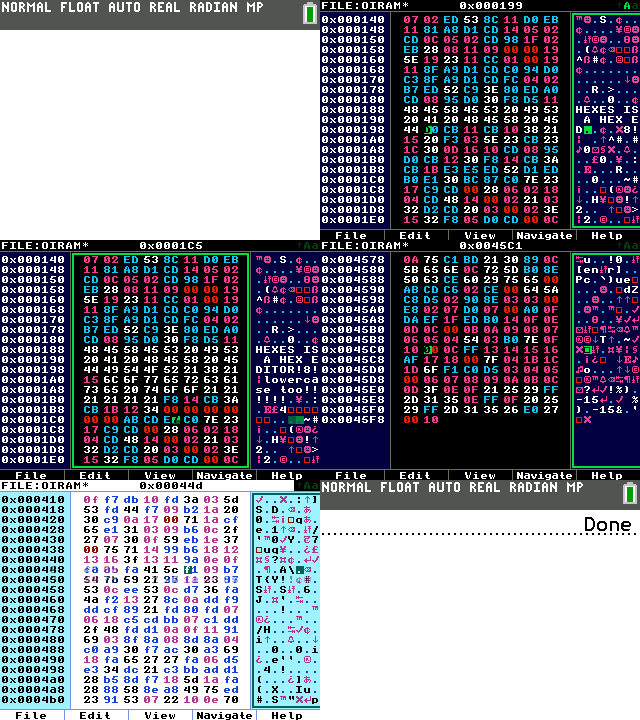
Hexes is a hex editor utility for the TI-84 Plus CE and TI-83 Premium CE calculators and their derivatives,
designed to be pleasant and friendly, providing a clean interface for viewing and editing
files precisely directly on your calculator.
This is a C rewrite of my 'old' hex editor of the same name, which was written in the ICE programming language.
It was buggy, hard to use, and overall just not something I would personally use as a hex editor. So, I decided to finally rewrite this in C. Enjoy! :)
Index
Releases
-
Woo! The C rewrite is finally released! This is the fruit of 4 months of work, and I am very proud of it. Of course, I have plans for many features
to be added in the future, so this is merely the beginning.
Changes and bugfixes are pushed to the
GitHub repository, so do check them out there.
Installation
Go to the above section (Releases) and download
HEXES.8xp from the attached link.
Transfer it to your calculator using TI Connect CE or TILP or whatever linking program you desire.
! WARNING !
Depending on the version of TI-OS on your calculator, you may need to use the arTIfiCE jailbreak.
See more details
here.
Building
First, make sure you have the CE C Toolchain installed on your computer. See
this site
for instructions and details.
Navigate to the root folder of the project, and simply run the command
make .
HEXES.8xp will be created in the
bin/ directory.
There are a few options you can set, however, I do not guarantee the build would be fully functional if enabled (currently the options are only graphical, so your data is not at risk) Append these to the
make command to enable them:
- ROUNDED_CORNERS=1 : An experiment to round the corners on some UI elements.
- FONT_MSTMONO=1 : Changes the font to another one I designed. A few special characters are missing, but otherwise works fine.
- FONTWID_CONFIG=1 : Adds an option in the configuration menu to change the font width.
Progress Updates
Progress updates are posted to the
dedicated forum topic on Cemetech and Cemetech chat, or you can read the commit messages.
If you have any feedback or bug reports, either create an issue or create a post in the forum topic!
How to use
File selector
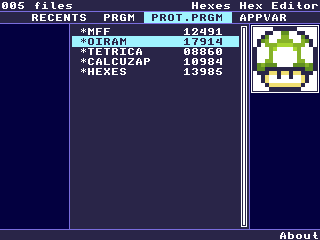
This is the menu that is shown to you upon opening Hexes.
Controls:
- ← → : Switch tabs
- ↑ ↓ : Move cursor
- [2nd] / [enter] : Open selected file
- [y=] in 'Recents' tab only: Clear list
- [graph] : About
- [clear] : Quit
Editor
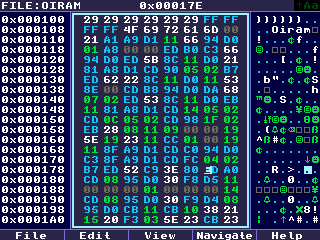
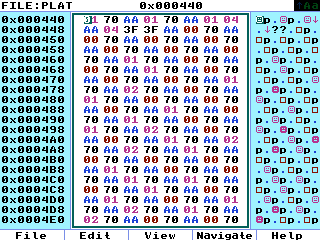
This is the real meat of the program, where hex editing happens (duh)
Controls:
- ← ↑ ↓ → : Move cursor
- [mode] : Change editing mode between the middle pane and right pane
- [y=] : 'File' menu
- [window] : 'Edit' menu
- [zoom] : 'View' menu
- [trace] : 'Navigate' menu
- [graph] : Help
- [clear] : Quit
When the middle pane is selected, you can use the number keys [0]-[9] along with
[math], [apps], [prgm], [x-1], [sin], and [cos] (for A, B, C, D, E, and F respectively)
to type hex digits at the cursor location.
When the right pane is selected, you can use the keyboard to type regular ASCII characters.
Use modifiers like [2nd], [alpha], and [XTθn].
By default, modifiers are set to be sticky, however, that can be changed from the customization/configuration menu.
Also by default, pressing alpha toggles between uppercase and lowercase (only when the modifier option mentioned in the line above is set to Toggle or Toggle Lock)
This can be disabled, making [alpha] toggle uppercase and [XTθn] toggle lowercase.
Headless Start
This feature can be used by other programs and shells by writing specific data to the Ans variable then launching Hexes. This skips the file selection screen and immediately shows the editor open for the file set in Ans.
Headless start is a feature borrowed from HexaEdit (by Captain Calc), another hex editor for the TI-84 Plus CE, and Hexes uses the exact same format HexaEdit uses, for compatibility purposes. See the HexaEdit README for the specifications of this format.
Customization
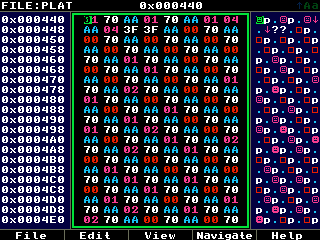
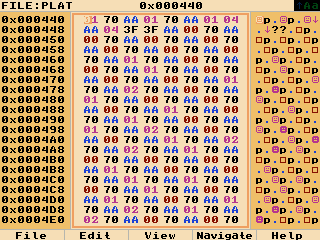
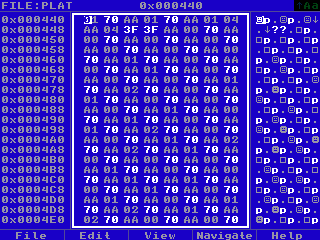
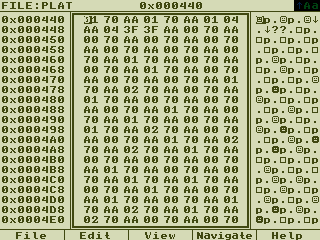
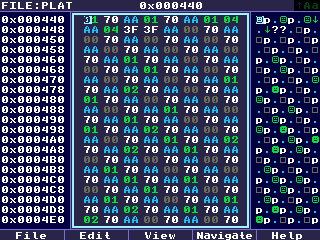
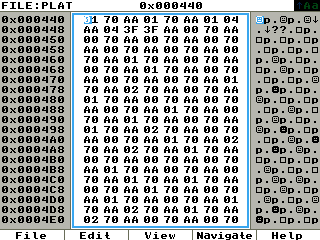
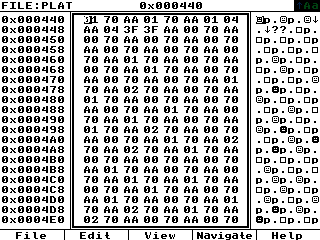
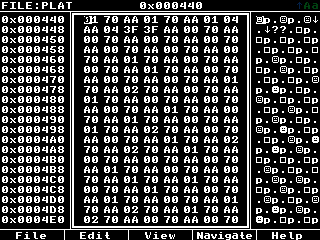
Hexes offers 9 preset palettes to choose from, which, well, is probably a bit much, but it's fine :)
You can also set each aspect of the color palette yourself.
Here are the palettes:
Copyright © 2024-2026 Mostafa Mortada (StephenM)
Licensed under the GNU General Public License 3.0